
Want to know how to apply thermal paste?
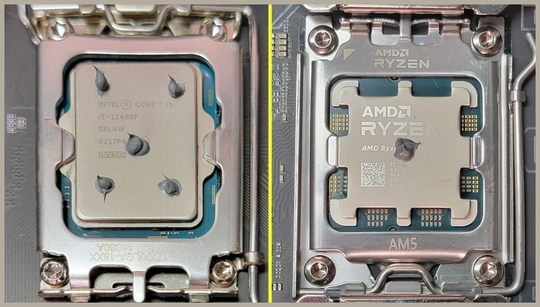
Applying thermal paste to modern CPUs has become more complex due to changes in their shape, size, and internal component layout, but there is no consensus on the “right” way to do it. Everyone knows the wrong way when they see it, though.
If you’re wondering how to apply thermal paste between the CPU and cooler, we have simple instructions here. You may hear that using liquid metal compounds can help you achieve lower temperatures, but they’re generally conductive and not recommended if you’re a beginner. We’ll also address some of the other myths you may have heard about this simple but important PC component.
How to apply thermal paste
First, you’ll want to install your CPU in the motherboard socket. If you’re using an AIO liquid cooler, you can install the motherboard in the case first, and the cooler will snap onto the CPU later. Be aware that some coolers come with pre-applied thermal paste, which is perfectly fine for most users.
If you remove the cooler, you’ll need to wipe off the pre-applied paste and apply fresh paste. Some of the larger, more premium models have a cartridge applicator that makes it very easy to apply a thin layer of paste.
Here are the guidelines for the best thermal paste application:
After applying the thermal paste, install the cooler without spreading the paste manually. Use the mounting hardware to secure the cooler in place, and it will spread the paste for you.
Run a CPU benchmark after booting up to test temperatures and performance. Following these thermal paste guidelines should help you achieve optimal temperatures and clock speeds.
Editor’s note: a previous version of this article recommended spreading paste manually with a spatula, which is not necessary with modern coolers.
Everything you need to know about the best thermal paste
Installing the best thermal paste may not be the easiest or quickest process but it is an important one, especially if you’re looking to overclock your PC. Here’s everything you need to know about the best thermal paste to ensure your PC is running at its best.