
Various ways to monitor CPU usage
What is your CPU usage? It's a simple question, but a complicated answer. The CPU is the brains of the operation when it comes to a computer. Unlike with the human brain, we can get an exact measure of how much processing capacity is in use at any given time. Whether one is a heavy multitasker or trying to optimize performance in a video game, monitoring CPU usage is essential to ensure getting the most out of the processor and identify any performance issues.
In this how-to guide, we'll show you various ways to monitor CPU usage, from quick and simple methods to more detailed approaches. We'll also cover how to check CPU temperature, important for those who overclock or are concerned about overheating.
What is CPU usage?
CPU usage is typically reported as a single percentage, indicating the current utilization of the CPU's resources. For example, if the usage is at 100%, the entire CPU is busy, while 25% usage means only a quarter of the CPU is occupied. However, modern CPUs consist of multiple cores, which adds complexity to CPU usage measurement.
Consider a quad-core CPU, where one core is maxed out while the rest are idle. In such cases, the overall CPU usage may be reported as 25%, but the performance is limited to the maximum capability of that core. This limitation is often observed in video games that don't effectively utilize multiple CPU cores, resulting in the frame rate being limited by the performance of a single core or thread.
In such scenarios, a single CPU percentage is not very informative. That's why we'll explore methods that allow you to monitor each individual CPU core's performance, helping you identify any bottlenecks.
Windows CPU usage
Windows provides robust and detailed performance monitoring tools, with each version of the operating system offering more detailed information. Here's how to access these tools in Windows 11 (also applicable to Windows 10):
Using the Windows Task Manager is effective when monitoring CPU usage in windowed applications. However, if you're using a full-screen application like a video game and don't have a multi-monitor setup, Task Manager won't provide the desired information.
Fortunately, Windows includes the Xbox Game Bar feature, allowing you to pin a performance monitoring widget on top of a full-screen app. Here's how to use it:
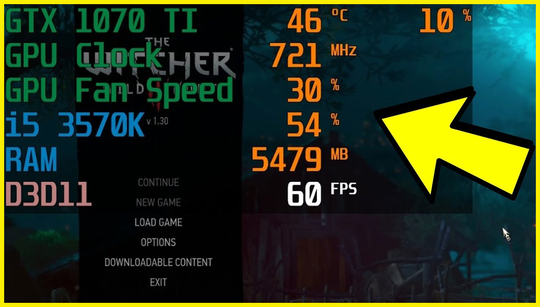
While the Xbox Game Bar offers a basic CPU usage meter for games and full-screen applications, it doesn't provide details about per-thread CPU usage. For a comprehensive view of CPU activity while running a full-screen 3D application, the MSI Afterburner combined with Riva Tuner Statistics Server (RTSS) is recommended. Here's how to set it up: